This description applies to users who do not use the integration between Yoursminc and Banqup. If you would like to use the integration between Yoursminc and Banqup, please see Grant access to your Banqup account to Yoursminc. |
To create an invoice in Yoursminc and then send it via the Peppol network, proceed as follows:
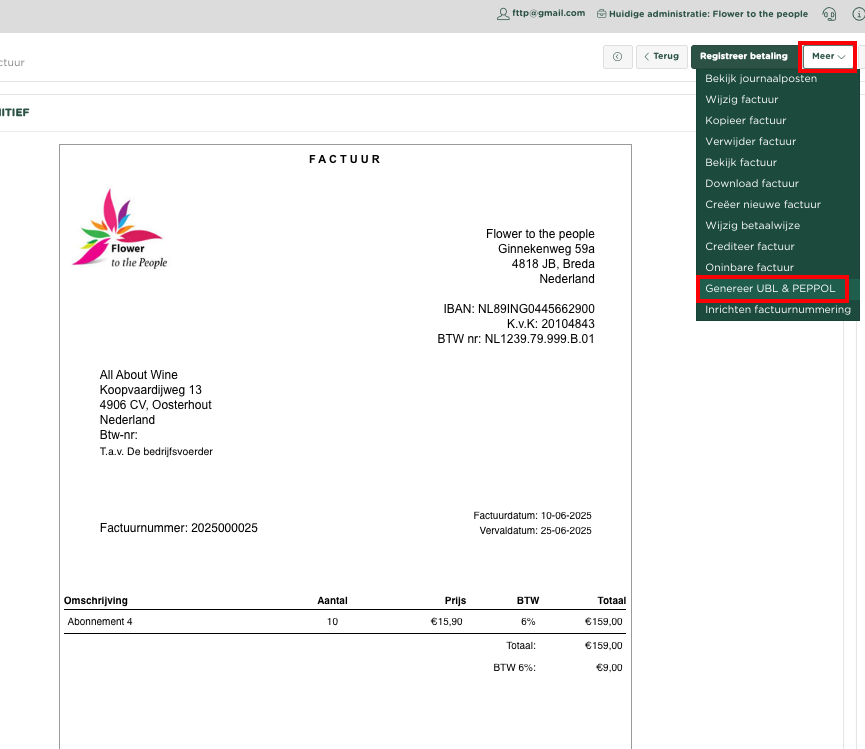
As usual, you create an invoice in Yoursminc that you want to send to your customer. After sending the invoice, select Generate UBL & PEPPOL from the More menu.
You'll now find the generated Peppol file in the bottom right corner of the page.

Click on the download icon , after which the peppol format file will be placed on your computer in the Download folder

We will now import this file into the Banqup portal (or within the portal of another Peppol access point)
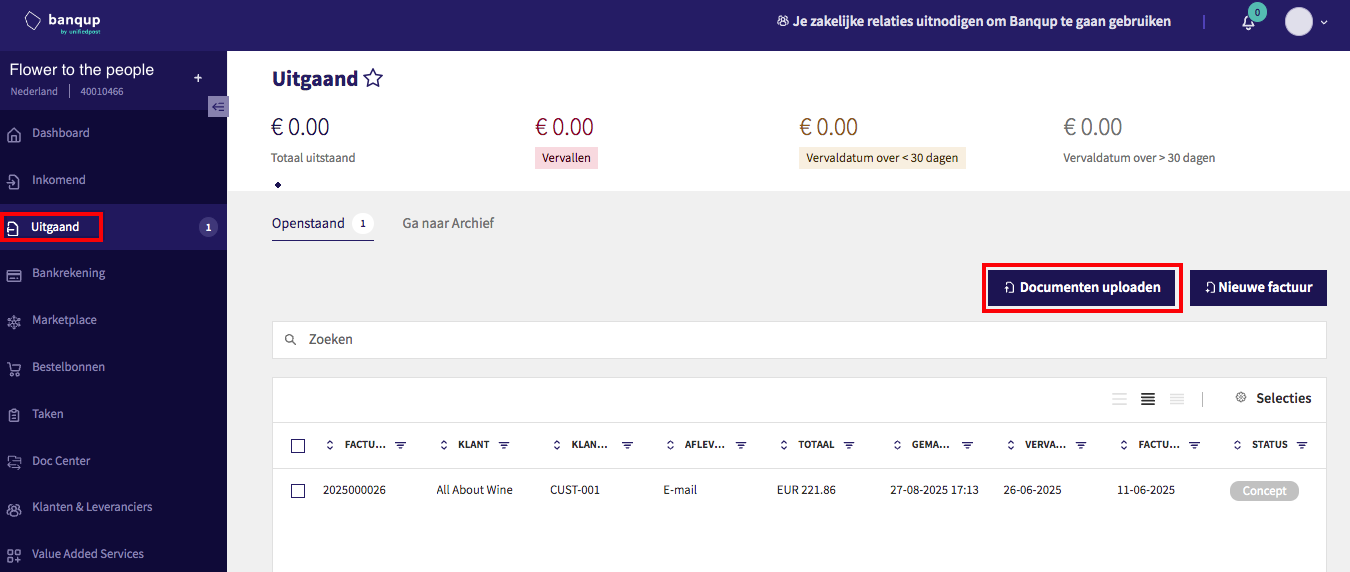
Within the portal, select Outgoing and click Upload Documents.
Select the Peppol format file from your computer, which will then be imported into the portal.
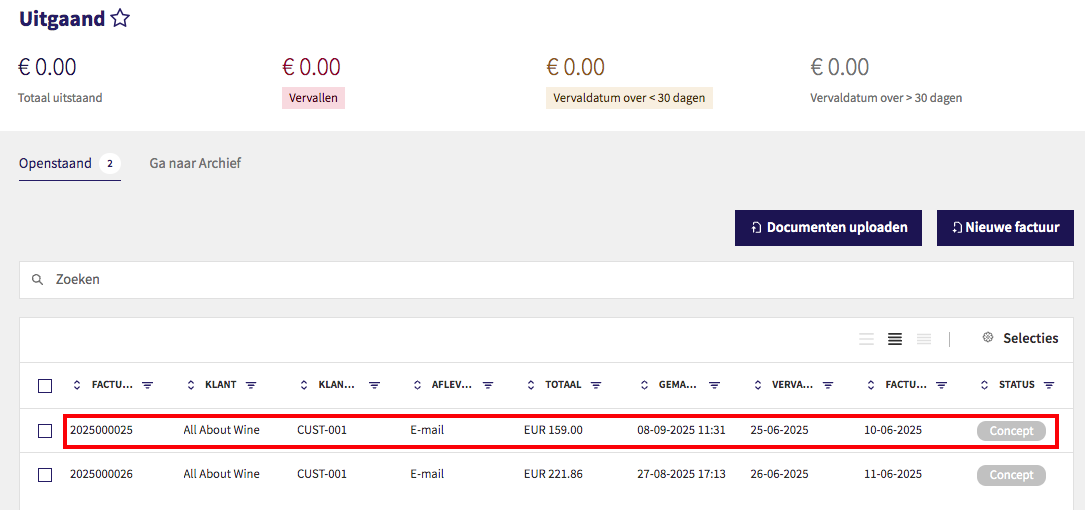
The imported invoice is now visible on the overview page.
You can now view the invoice in question by clicking on it.
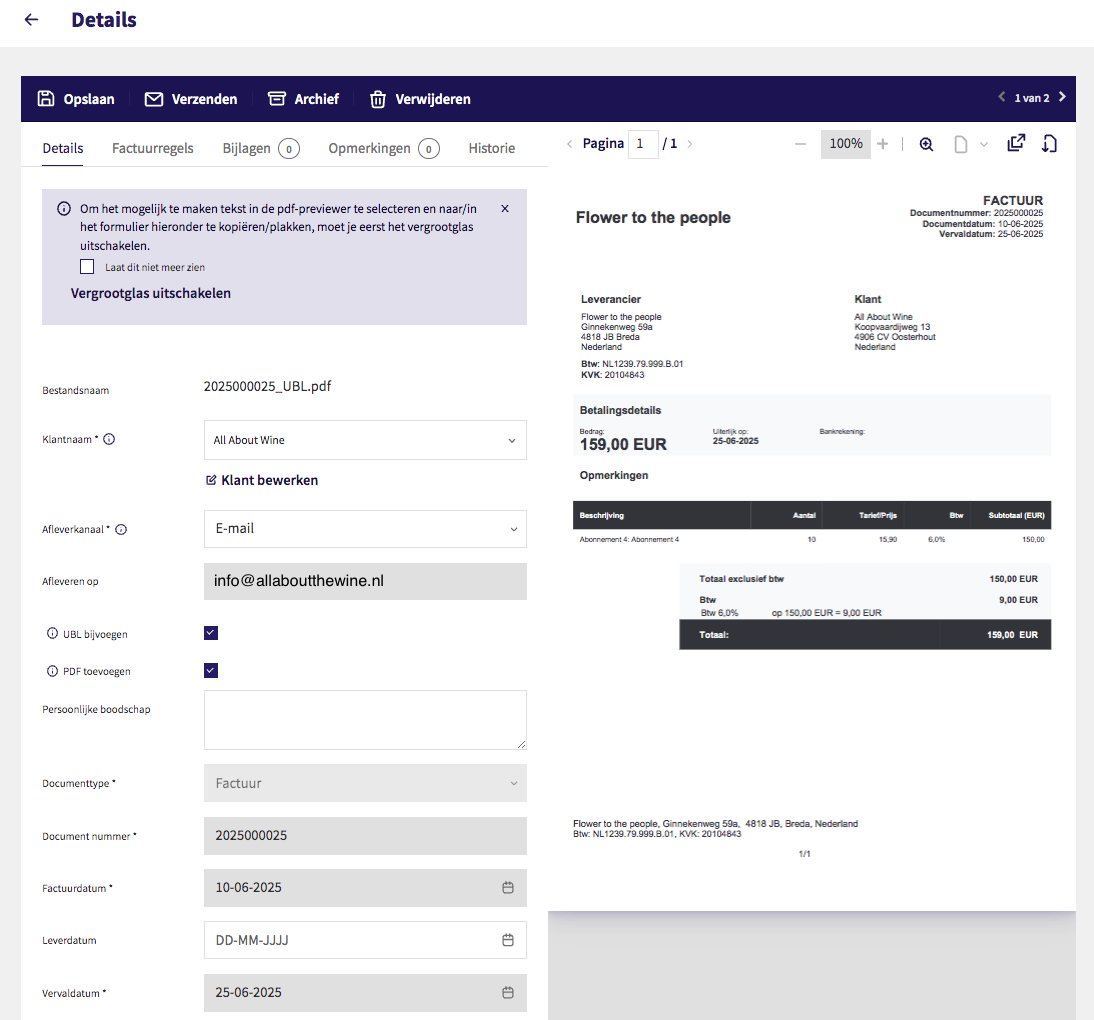
Click the arrow in the top left corner to return to the overview page.
Select the relevant invoice by clicking the checkbox on the left.
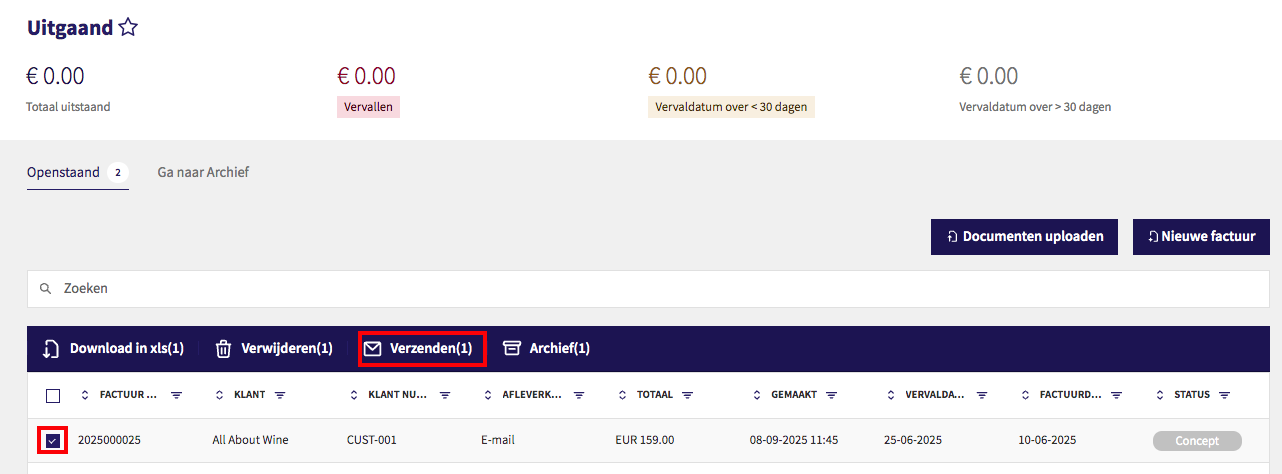
Press on Send
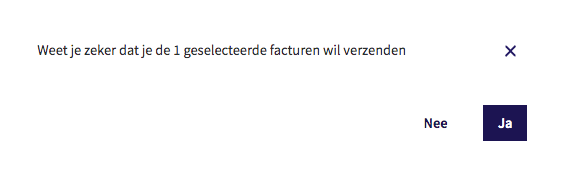
Confirm sending of the invoice in question
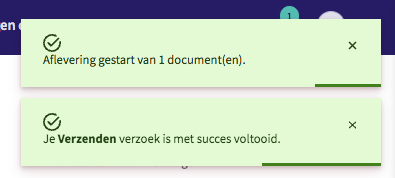
You will now receive confirmation that the invoice has been sent.
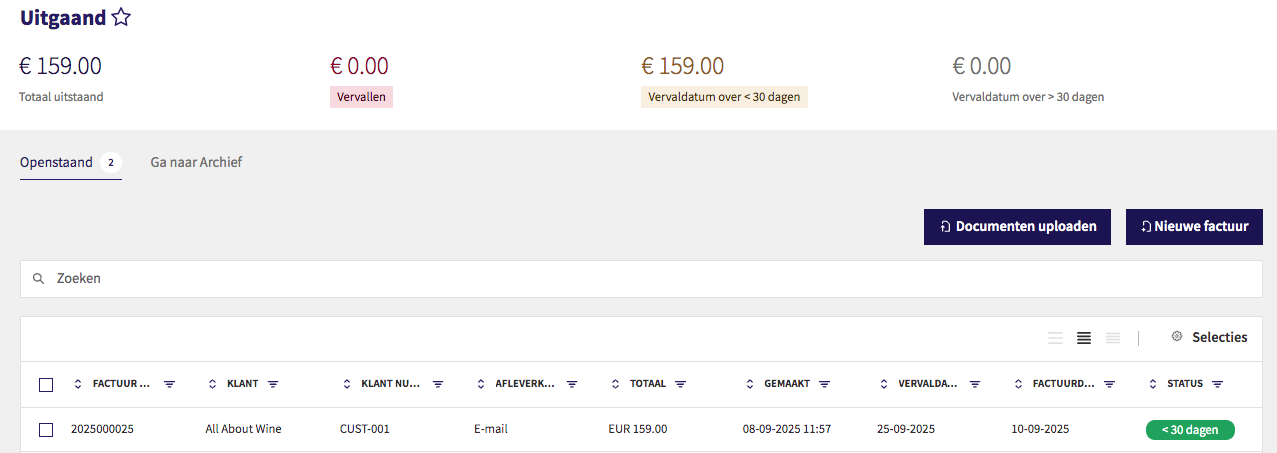
You'll now see in the overview that the invoice has been sent and has been given the status < 30 days.
The recipient will now receive the invoice in question.

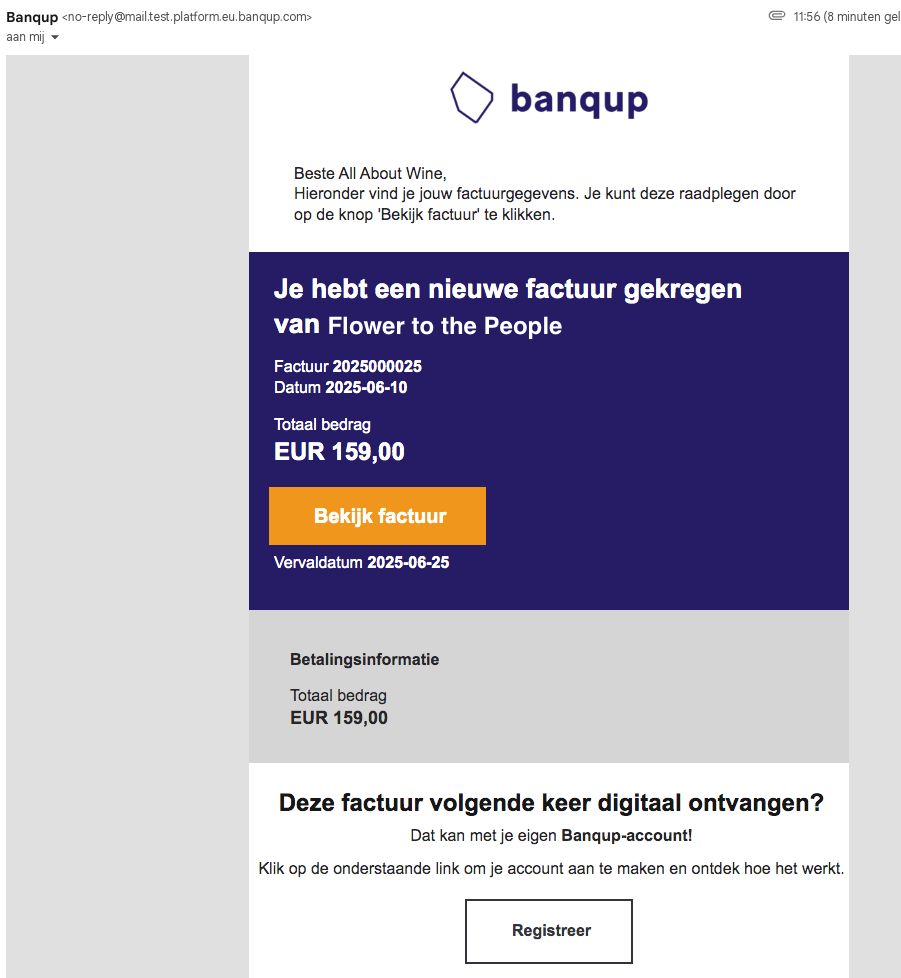
In this example, you can see that Banqup asks the recipient of the invoice in question to register for an account in the Banqup access point, so that it can be automatically found in their Peppol portal in the future.
Of course, this could also be any other access point.