| Info | ||
|---|---|---|
| ||
Deze beschrijving geldt voor gebruikers die geen gebruik maken van de integratie tussen Yoursminc en Banqup. Als je wel gebruik wilt maken van de integratie tussen Yoursminc en Banqup, kijk dan in This description applies to users who do not use the integration between Yoursminc and Banqup. If you would like to use the integration between Yoursminc and Banqup, please see Grant access to your Banqup account to Yoursminc. |
To create an invoice in Yoursminc and then send it via the Peppol network, proceed as followsOm een factuur in Yoursminc aan te maken en vervolgens via het peppol netwerk te verzenden, ga je als volgt te werk:
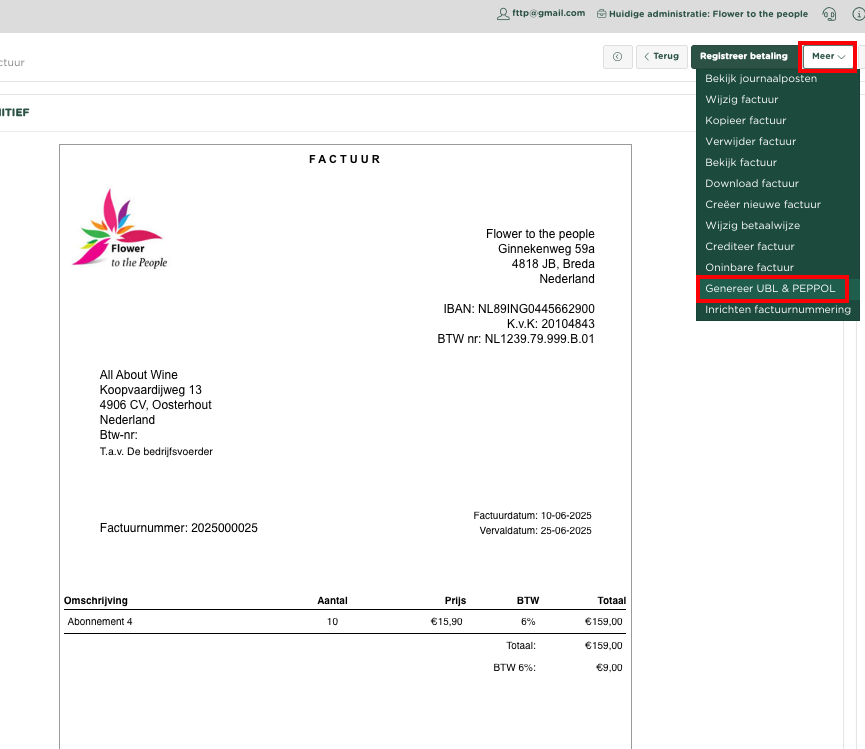
Zoals je dat gewend bent, creëer je binnen Yoursminc een factuur welke je aan je klant wilt versturen. Selecteer nadat je de factuur verstuurd hebt uit het Meer menu, de optie Genereer UBL & PEPPOL.
Je zult nu rechtsonder in de pagina het gegenereerde Peppol bestand terugvinden
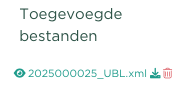
Klik op het download icoon  , waarna het peppol formaat bestand op je computer terecht komt in de Download folder

Dit bestand gaan we nu vervolgens inlezen in het Banqup portaal (of binnen het portaal van een ander Peppol access punt)
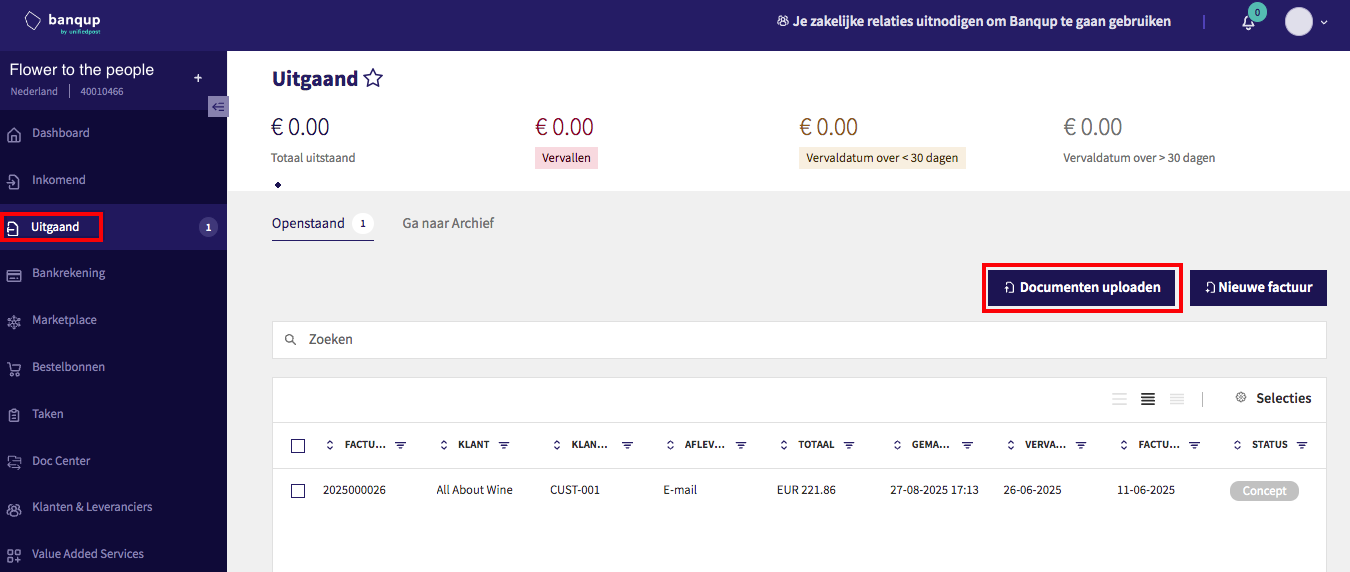
Binnen het portaal kiezen we nu voor Uitgaand en drukken we op Documenten uploaden
Selecteer het peppol formaat bestand van je computer, waarna dit wordt ingelezen in het portaal
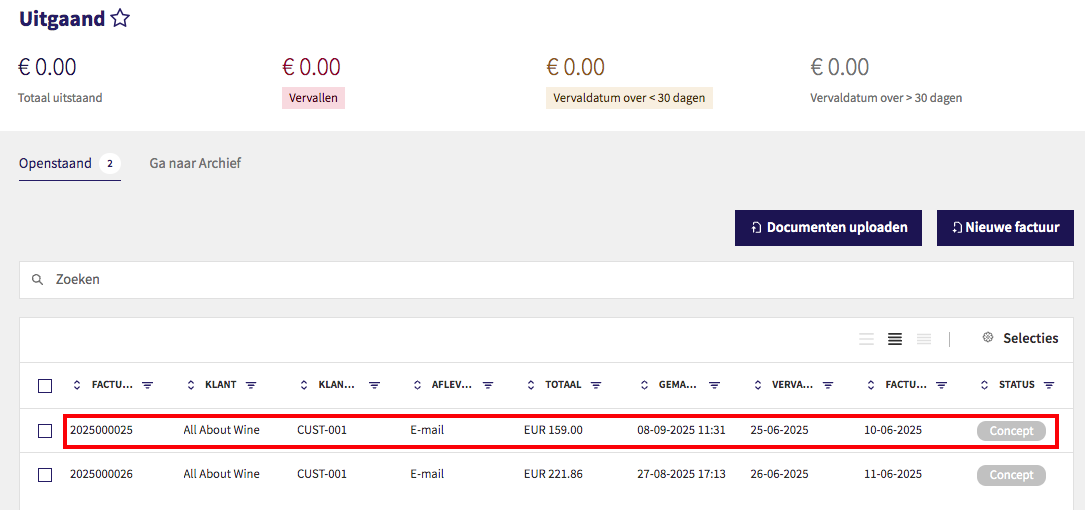
De ingelezen factuur is nu te zien in de overzichtpagina
Je kunt nu de betreffende factuur verder bekijken door op de factuur te klikken
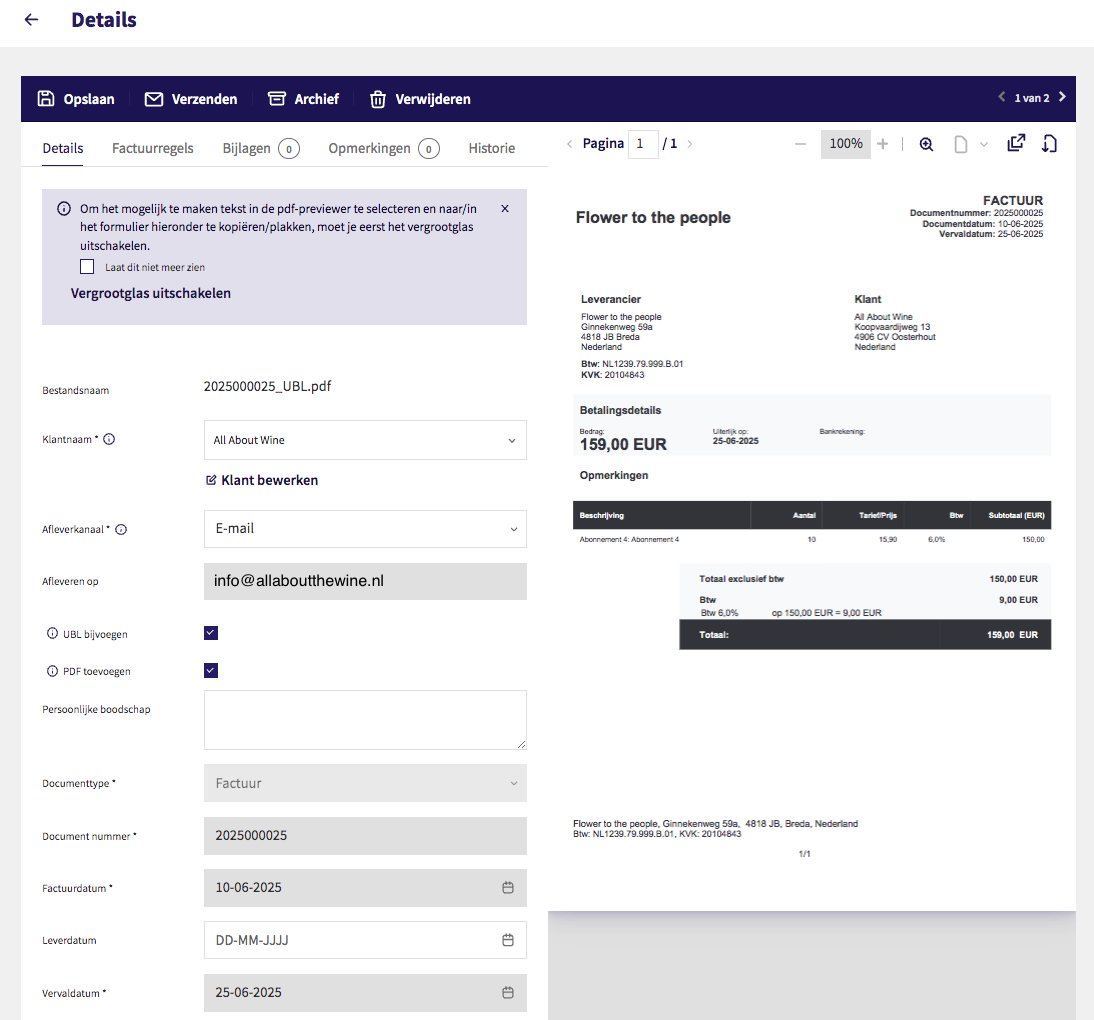
Klik nu links boven op het pijltje om weer terug te komen in de overzichtpagina
Selecteer nu de betreffende factuur door in de checkbox aan de linkerzijde te klikken
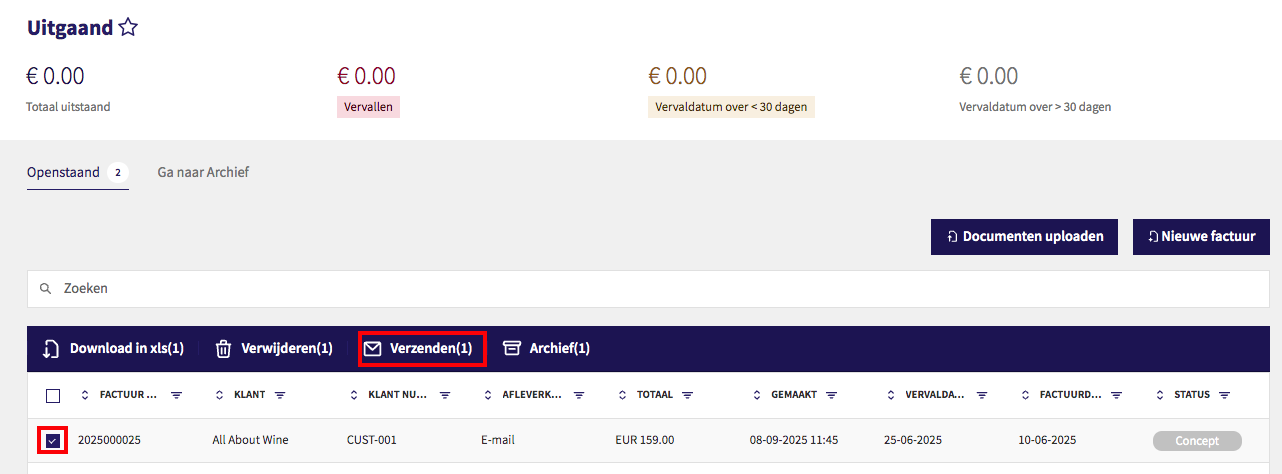
Druk vervolgens op Verzenden
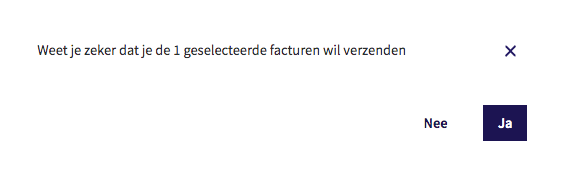
Bevestig het verzenden van de betreffende factuur
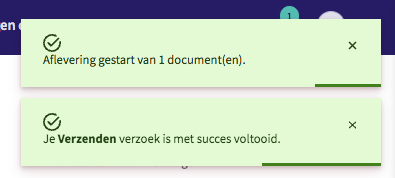
Je krijgt nu de bevestiging dat de factuur wordt verstuurd
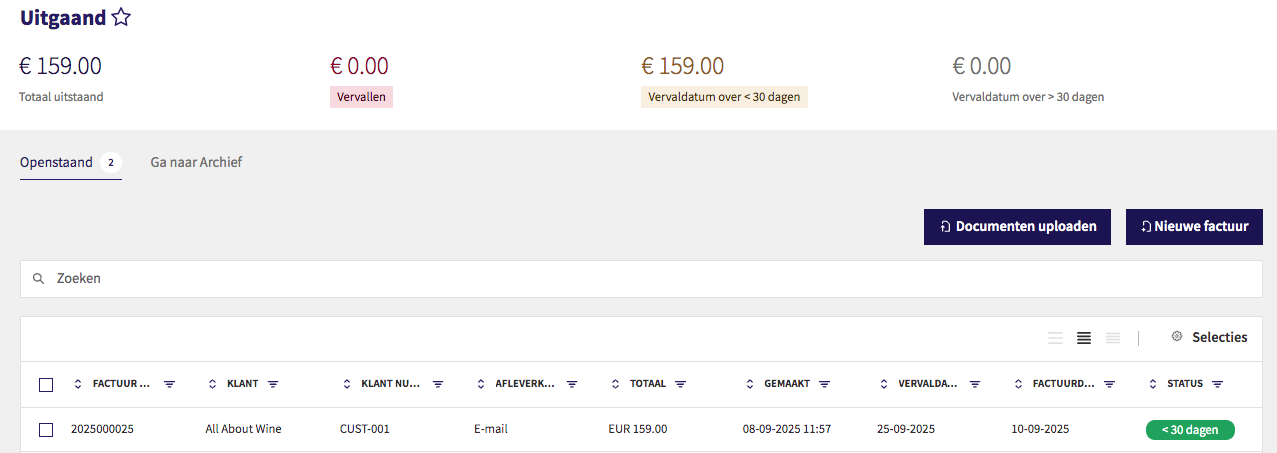
Je ziet nu in het overzicht dat de factuur is verzonden en dat de status < 30 dagen heeft gekregen
De ontvangen zal nu de betreffende factuur ontvangen

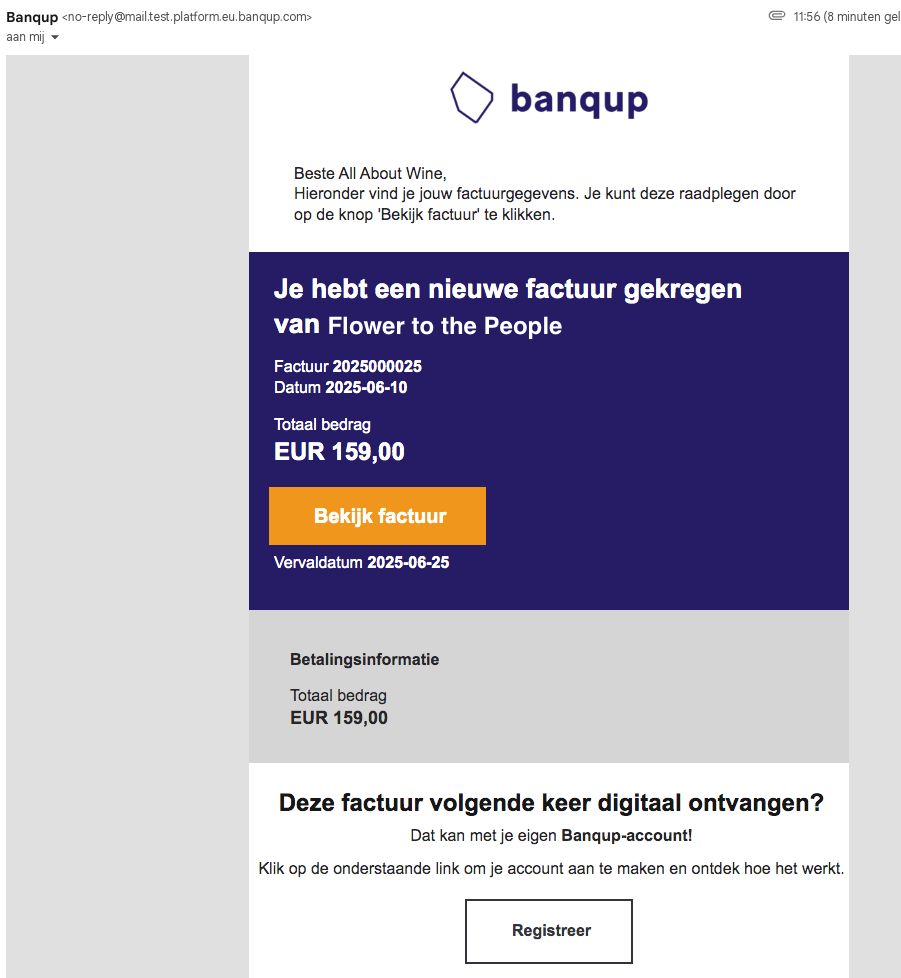
Je ziet in dit voorbeeld dat de ontvangen van de betreffende factuur door Banqup wordt gevraagd om zelf ook te registreren voor een account in het Banqup access point, zodat deze een volgende keer automatisch binnen zijn peppol portaal is terug te vinden.
As usual, you create an invoice in Yoursminc that you want to send to your customer. After sending the invoice, select Generate UBL & PEPPOL from the More menu.
You'll now find the generated Peppol file in the bottom right corner of the page.
Click on the download icon , after which the peppol format file will be placed on your computer in the Download folder
We will now import this file into the Banqup portal (or within the portal of another Peppol access point)
Within the portal, select Outgoing and click Upload Documents.
Select the Peppol format file from your computer, which will then be imported into the portal.
The imported invoice is now visible on the overview page.
You can now view the invoice in question by clicking on it.
Click the arrow in the top left corner to return to the overview page.
Select the relevant invoice by clicking the checkbox on the left.
Press on Send
Confirm sending of the invoice in question
You will now receive confirmation that the invoice has been sent.
You'll now see in the overview that the invoice has been sent and has been given the status < 30 days.
The recipient will now receive the invoice in question.
In this example, you can see that Banqup asks the recipient of the invoice in question to register for an account in the Banqup access point, so that it can be automatically found in their Peppol portal in the future.
Of course, this could also be any other access pointUiteraard zou dit ook een willekeurig andere access point kunnen zijn.